
On this page
To make TikTok Shop videos with AI, start from a clean product photo, turn it into short vertical clips, add a voiceover and captions, export at 9:16, then switch on TikTok's AI-generated content label before you post. No camera, no creator, no shipping samples.
The catch is not the making. It is staying inside the rules, because the product on screen has to match the product in the box. This guide covers the workflow, the specs and the labeling in that order.
What TikTok Shop allows with AI video
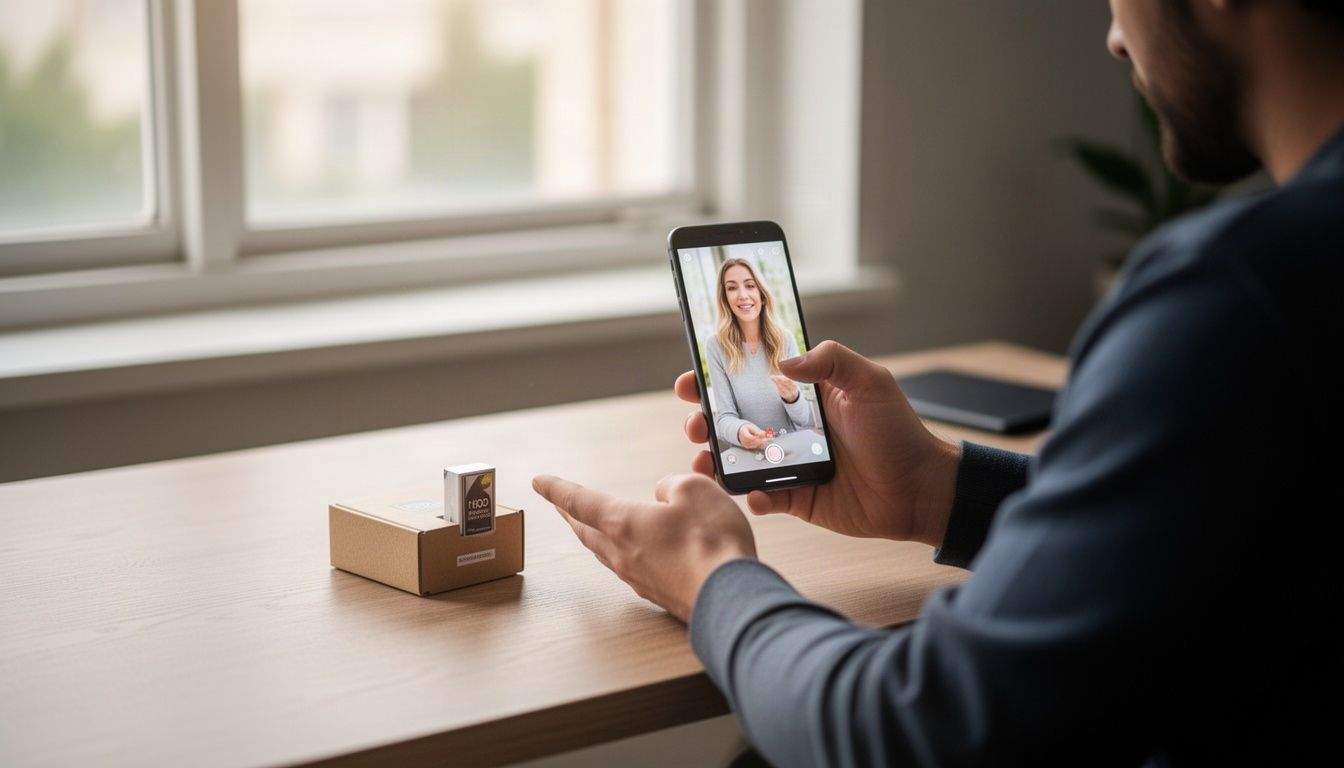
AI is allowed. It is explicitly allowed on TikTok Shop when it is accurate, properly disclosed, and does not misrepresent the shipped product. Those are the three tests every clip has to pass.
On disclosure, TikTok's own seller guidance says to disclose AI use whenever it materially contributes to visuals, voice, avatars, or demonstrations, and to use the AI-generated content toggle when publishing. Third-party summaries of the 2026 policy updates say that skipping the label risks listing removal, reduced reach, or account suspension. Policies change, so check Seller Center before you scale anything.
Here is how the common cases break down, according to one 2026 compliance reference:
| What you did | Label needed? | Status |
|---|---|---|
| AI-generated lifestyle background | Yes | Allowed with label |
| Synthetic human model or face | Yes | Allowed with label |
| AI voiceover | Yes | Allowed with label |
| Basic retouching (brightness, contrast) | No | Allowed |
| Changing product color or dimensions | No label fixes this | Prohibited |
One more useful split: AI-assisted text is exempt from TikTok's labeling requirements, so AI-written scripts and captions are fine on their own.
Start with a clean product photo
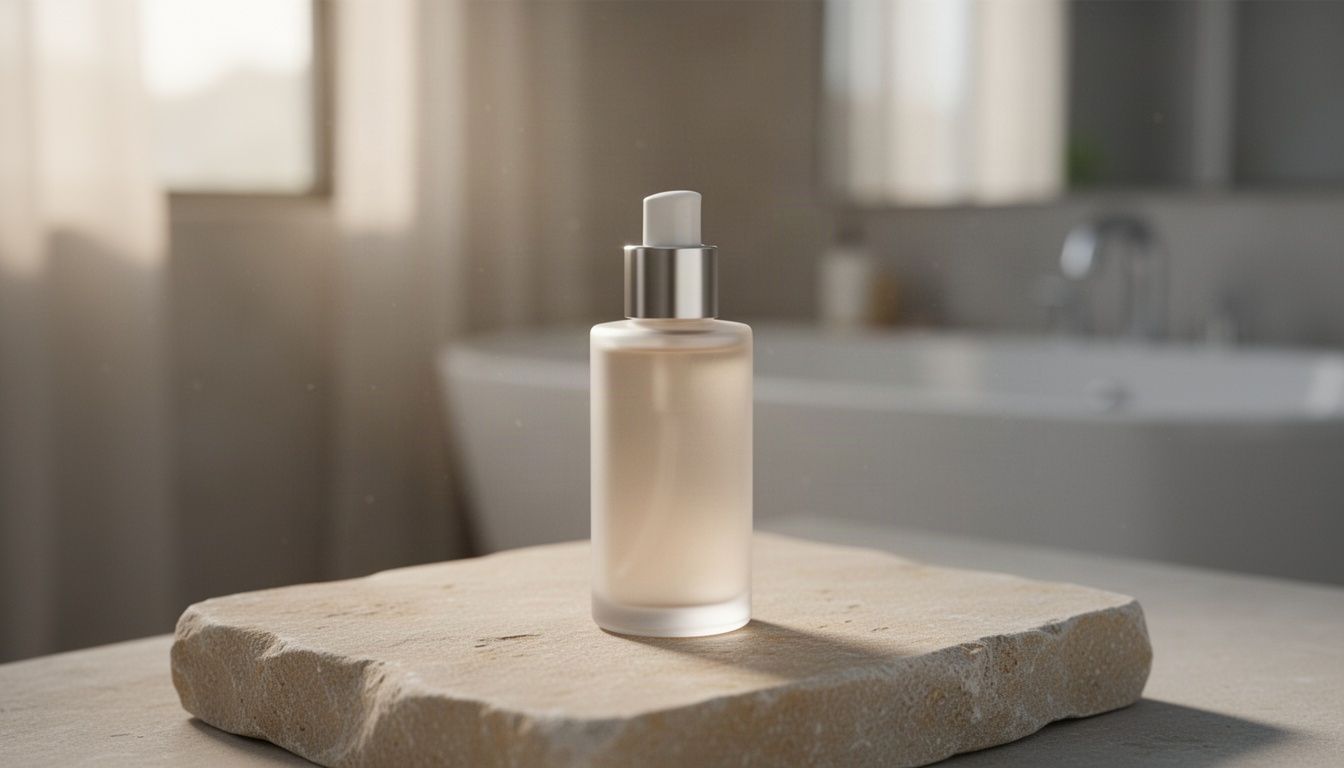
Every AI clip is only as honest as its starting image. If the product looks wrong in frame one, no motion will fix it. So build your base visuals first, and keep the product itself untouched.
That is what Product Shots does: you upload one product photo and get studio and lifestyle shots, while the product itself stays as it is. That matters here, because altering a product's look is exactly what gets listings flagged as not as described. Generate a few angles: a clean white-background hero, a hand-held scene, a desk or bathroom setting that fits who buys it.
Quick checks before you move on:
- Count the parts. If the real box has three pieces, the image shows three.
- Check the color against your physical sample, in daylight.
- Look for warped text on the packaging. If the label is garbled, pick another shot.
Backgrounds made by AI count as synthetic scenes, so these images will need the label when they appear in the final video.
Turn the stills into short vertical clips
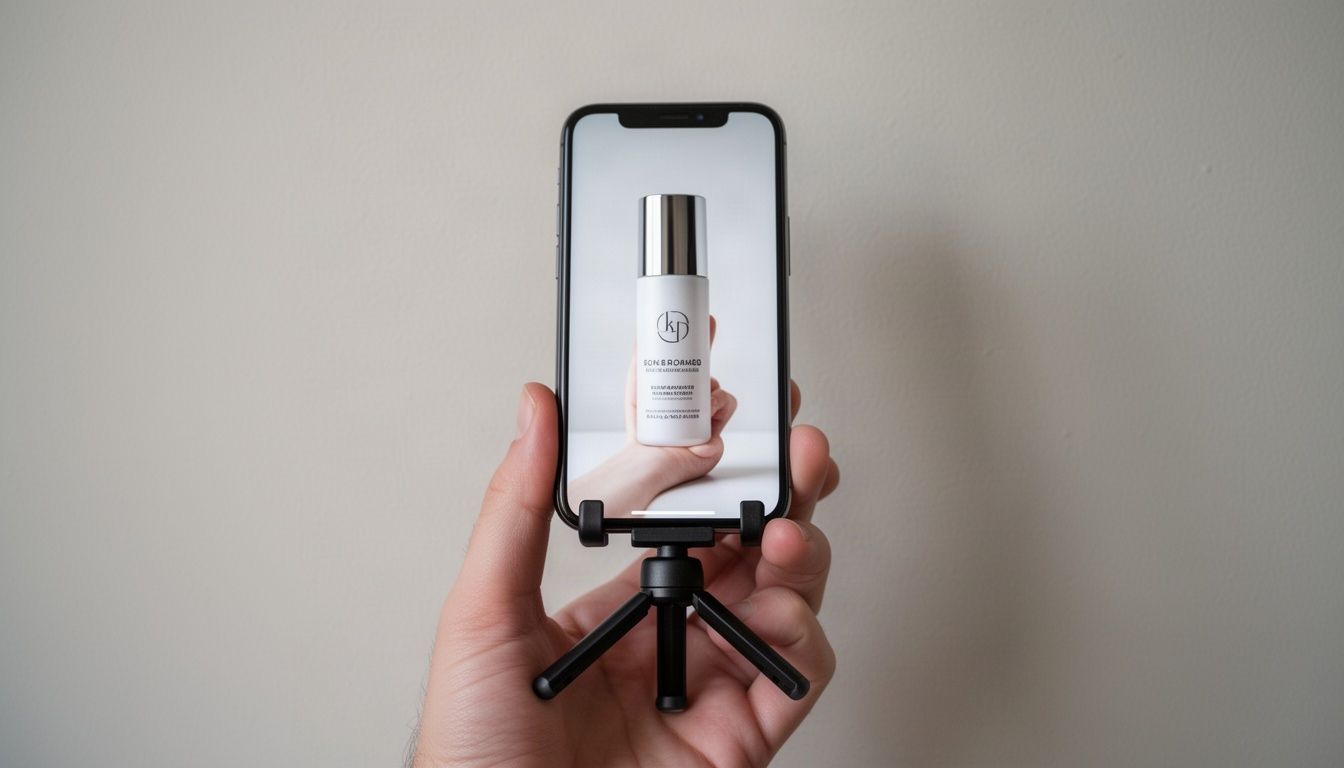
Now add motion. In OneStudio's direct Video generation you choose the model yourself, and each generation's token cost is shown before you run it. Generate several short clips rather than one long one: a slow push-in on the product, a hand reaching for it, a close-up of a texture, a setting shot for context.
Keep each clip to a few seconds. Sources differ on the sweet spot, but one 2026 spec guide lists 5 to 60 seconds as allowed, with 9 to 15 seconds recommended for in-feed ads. A 12-second video built from four 3-second clips is a good starting structure.
Write prompts about the camera and the scene, not about product claims. Ask for "slow dolly toward a white ceramic mug on a wooden table, warm light". Do not ask for results the product cannot deliver. TikTok's guidance warns against exaggerating product efficacy and against churning out repetitive, near-identical promo videos, so vary your hooks and settings between uploads.
If you want a talking presenter instead of product B-roll, that is a different category of tool, and it has different labeling and pricing trade-offs. We compare that route on our Arcads alternative page.
Add a hook, voiceover and captions
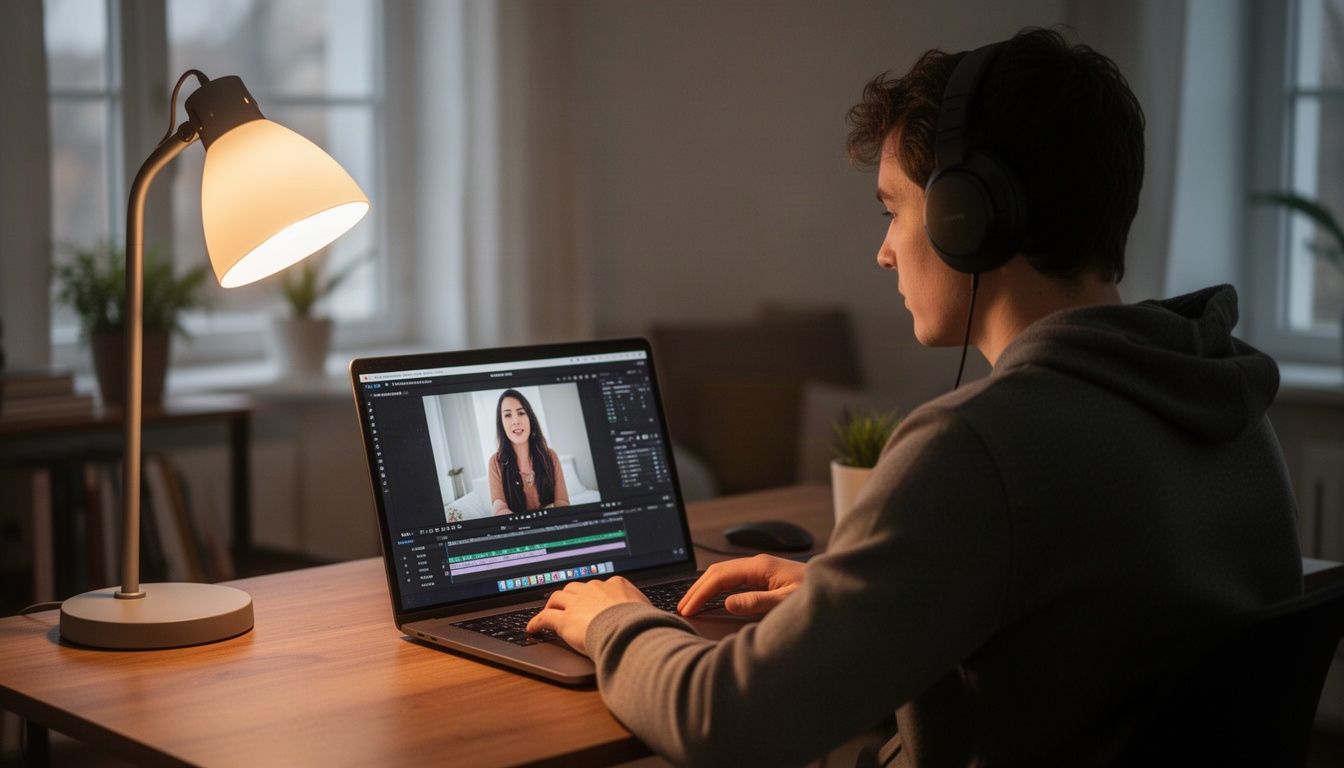
Scripts are the part AI does with the least friction. Use it to draft three hooks, a one-line problem, a one-line payoff and a call to action. Then cut it down. Short product videos live or die in the first two seconds, so lead with the problem or the result you can honestly show.
For voice, you can record your own, which keeps it simple, or use a synthetic voice. If you pick a synthetic one, remember it counts: AI voiceover on pre-recorded shoppable videos is fine, provided the narration accurately describes the product and the AI-generated content toggle is enabled or a clear label appears.
Burn in captions. One technical reference for video tools says 85% of TikTok is watched without sound, which is a vendor-cited figure, so treat it as a rough guide. Either way, captions help people who watch muted. Keep text away from the bottom edge, where TikTok's interface covers it.
Export at 9.16 and trim to length
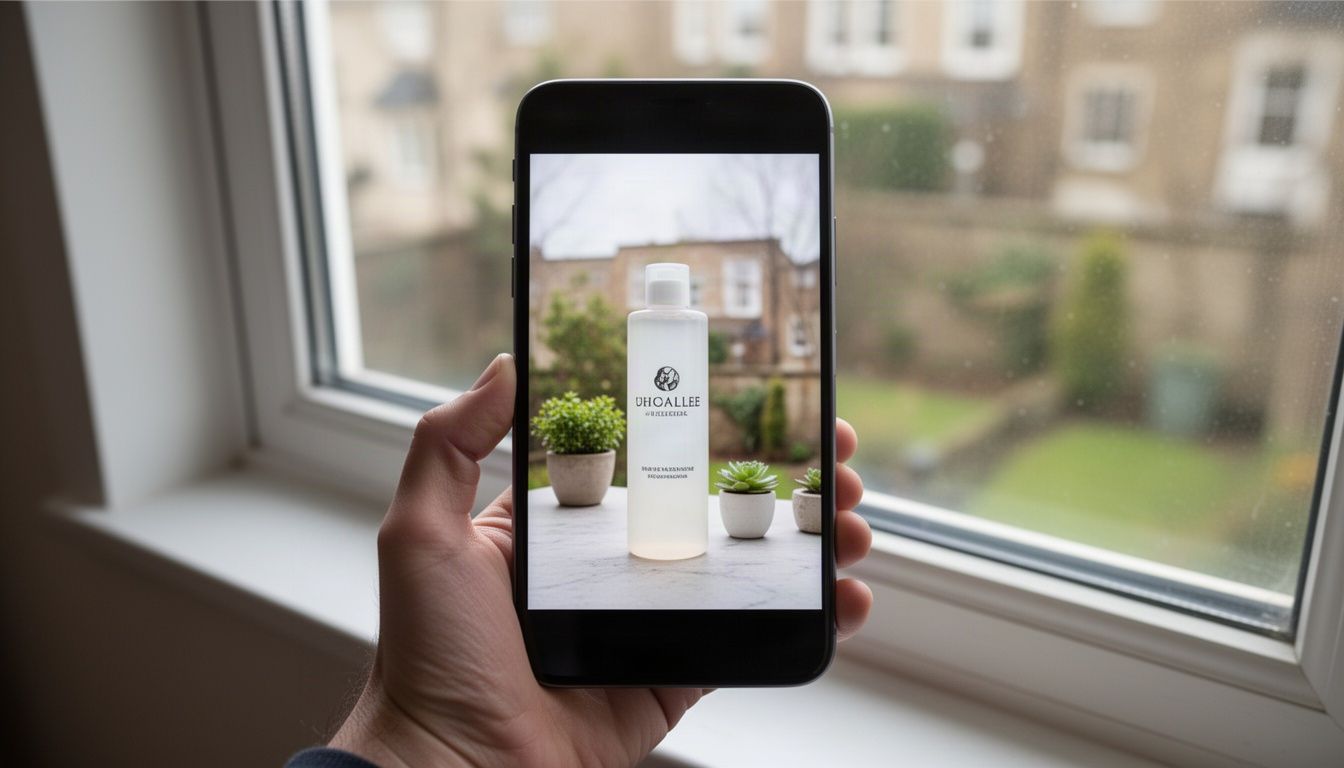
TikTok is vertical-first. The standard spec is 1080x1920 pixels at a 9:16 aspect ratio. Other ratios do not always get rejected, but 9:16 is the only ratio that fills the screen without letterboxing or cropping, and 16:9 gets black bars and ranks lower. Export MP4 or MOV.
If any of your clips came out square or wide, fix them with the free Reframe tool, which switches a video to 9:16, 1:1, 4:5 or 16:9 with no account. Then cut dead air at the start and end with the free Trim tool, which trims to exact start and end times and gives you an MP4. Both are browser utilities, no tokens and no watermark.
Before you upload, run this checklist:
- Video is 9:16, 1080x1920 where your source allows.
- Length is under 60 seconds, ideally 9 to 30.
- The product shown matches the real item in color, size and contents.
- No results, before-and-afters or claims the product cannot deliver.
- Captions sit clear of the bottom edge.
Label it and upload
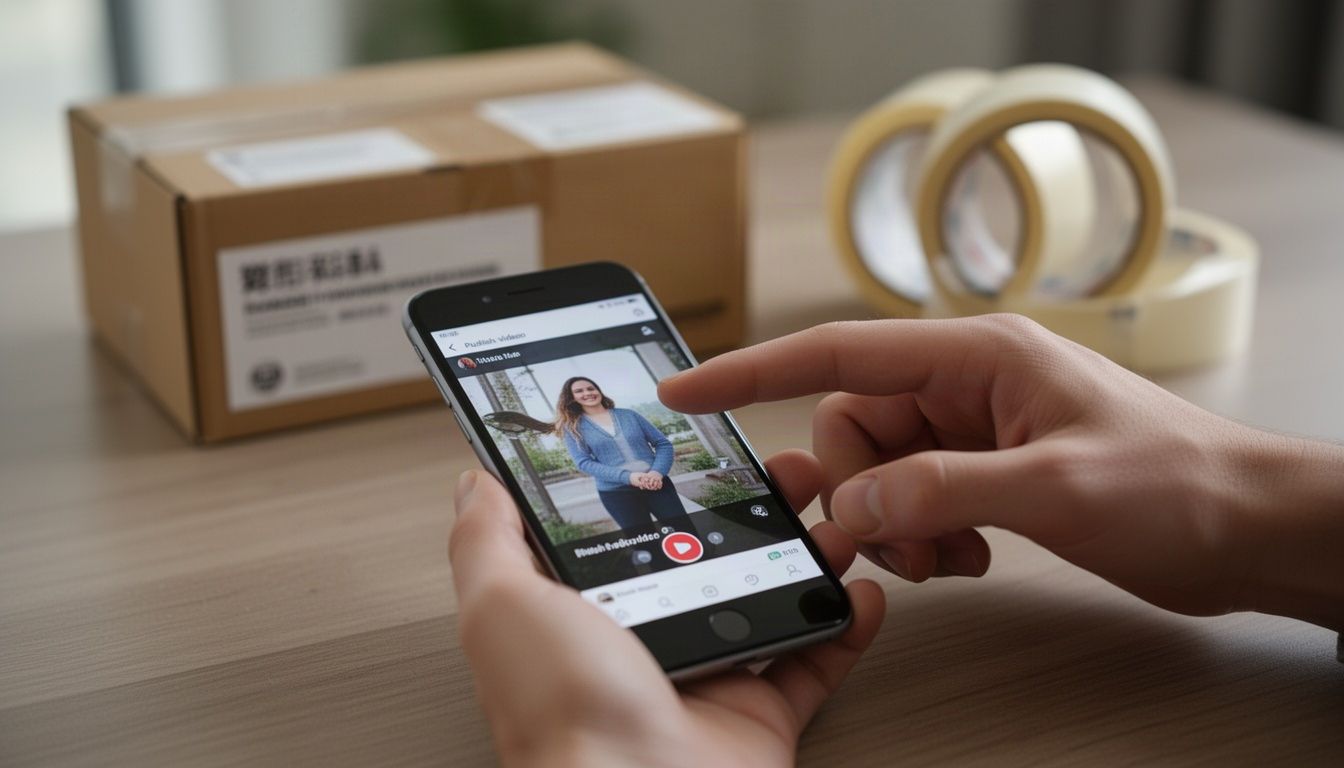
This is the step people skip. During upload, open the more options menu and activate the AI-generated content toggle for every asset that features synthetic elements. Do it before you publish. One compliance guide notes that if a video is flagged for missing disclosure, you cannot edit the label onto a live video. You would have to repost.
If you are posting as an affiliate or a sponsored creator, a disclosure for AI and a disclosure for payment are separate things. One guide puts it plainly: an AI label does not tell a viewer you were paid, and a paid partnership toggle does not tell a viewer the presenter is synthetic.
Then watch the first week of results. Test two or three hooks on the same product, keep the one with the best watch time, and generate variations of that winner instead of starting from zero.
Frequently asked questions
Can you use AI videos on TikTok Shop?
Yes. TikTok Shop allows AI-generated content when it is labeled and accurately shows the product. Use the AI-generated content toggle at upload, and never show effects, sizes or contents the real product cannot deliver.
Do I need to label AI product videos on TikTok?
If AI materially contributes to the visuals, voice or demonstration, TikTok's seller guidance says to disclose it. Light retouching like brightness fixes generally does not need a label. When unsure, label it.
What size should TikTok Shop videos be?
Use 9:16 vertical, ideally 1080x1920 pixels, in MP4 or MOV. Shorter videos of roughly 9 to 30 seconds are the usual starting point for product content.
Is making AI TikTok Shop videos free?
The generation steps spend tokens, shown before you run them, and there is no free tier. Free browser tools like Reframe and Trim cost nothing. See pricing for plans and token packs.
Make the first clip from one photo
You do not need a shoot to make TikTok Shop videos with AI. You need a believable product image, a few short vertical clips, honest copy and the label switched on. Start with the base: Product Shots turns one product photo into studio and lifestyle visuals without changing the product itself, and everything else in this workflow builds on that.